¶ Flash MeshCore as a Companion
This is a general guide for setting up a companion that will work with the Upstate Mesh MeshCore network. It will not cover all device specifics.
¶ Overview
This guide walks you through flashing MeshCore firmware onto a supported LoRa device using the MeshCore Web Flasher.
The web flasher is the recommended method for most users. It does not require installing local tools and helps avoid common flashing mistakes.
Antenna Warning
Before powering on your device, ensure that the antenna is connected.
Powering a LoRa radio without an antenna can permanently damage the device.
USB-C Power Warning
If your LoRa device uses USB-C, it is strongly recommended to use a USB-A (standard USB) to USB-C cable when flashing or powering the device.
Some LoRa boards have been damaged when connected with USB-C to USB-C cables, as certain host devices may negotiate and supply more current than the board is designed to handle.
¶ Prerequisites
Before you begin, make sure you have:
- A supported LoRa device
- A USB data cable (not charge-only)
- A computer running Windows, macOS, or Linux
- A modern Chromium-based browser (Chrome, Edge, or Brave)
⚠️ Firefox does not work at this time - The correct antenna for your device’s frequency band (e.g. 915 MHz in the US)
¶ Step 1: Identify Your Device
Determine the exact model of your LoRa board before flashing.
Firmware is device-specific. Selecting the wrong device may prevent the device from booting.
If you are unsure which device you have, stop and ask for help before continuing.
¶ Step 2: MeshCore Web Flasher
-
Open a Chromium-based browser (Chrome recommended).
-
Navigate to the MeshCore Web Flasher:
-
Connect your device to your computer using USB.
DFU/Flash Mode
You will likely have to put your device in DFU mode or flash mode. In order to flash the firmware. To do this you'll need to locate the instructions for your device model.
- Begin typing your device model and select the correct device from the list.
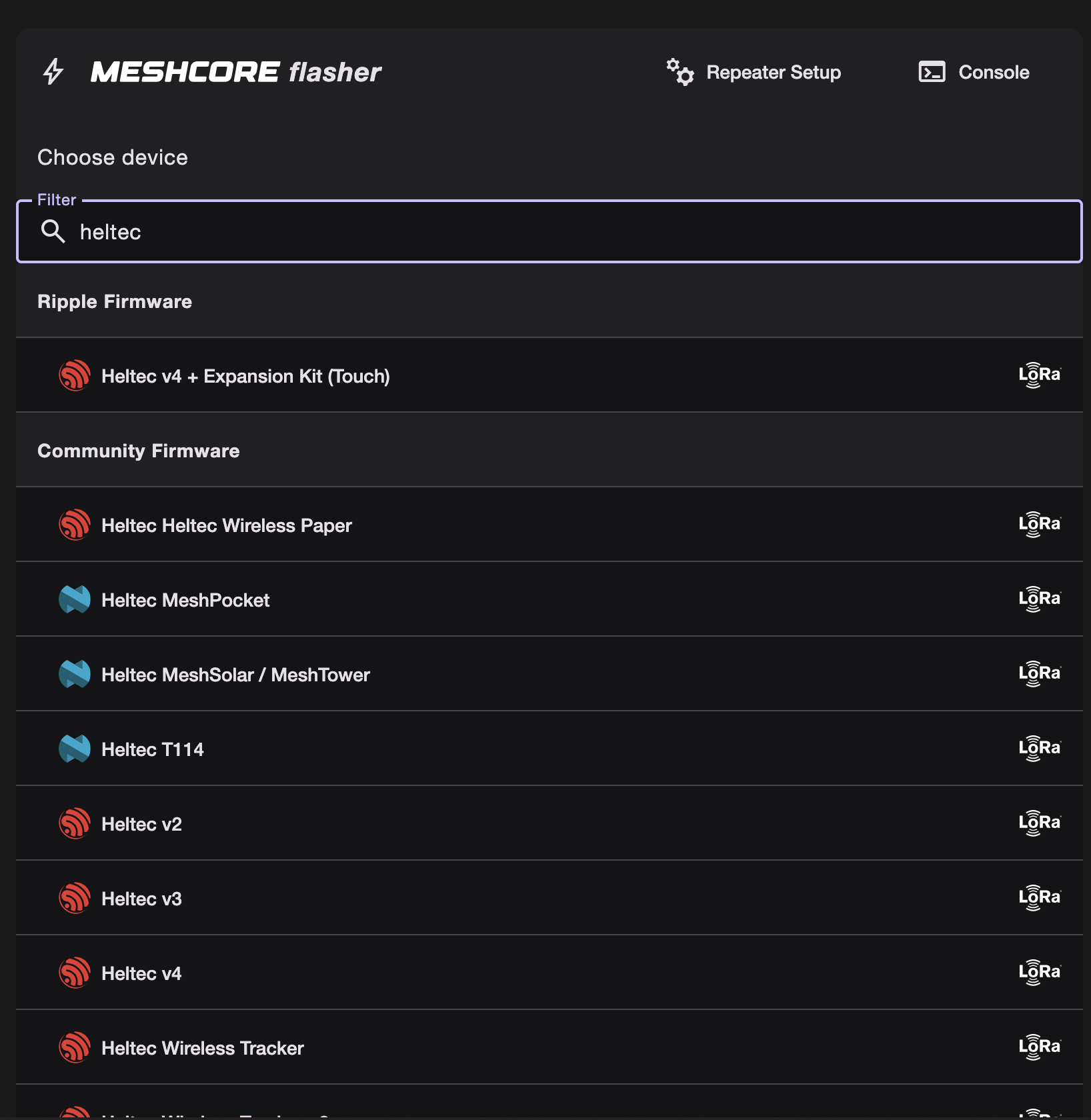
click image to enlarge
- Select either
Companion BluetoothorCompanion USB, depending on how you plan to use the device.
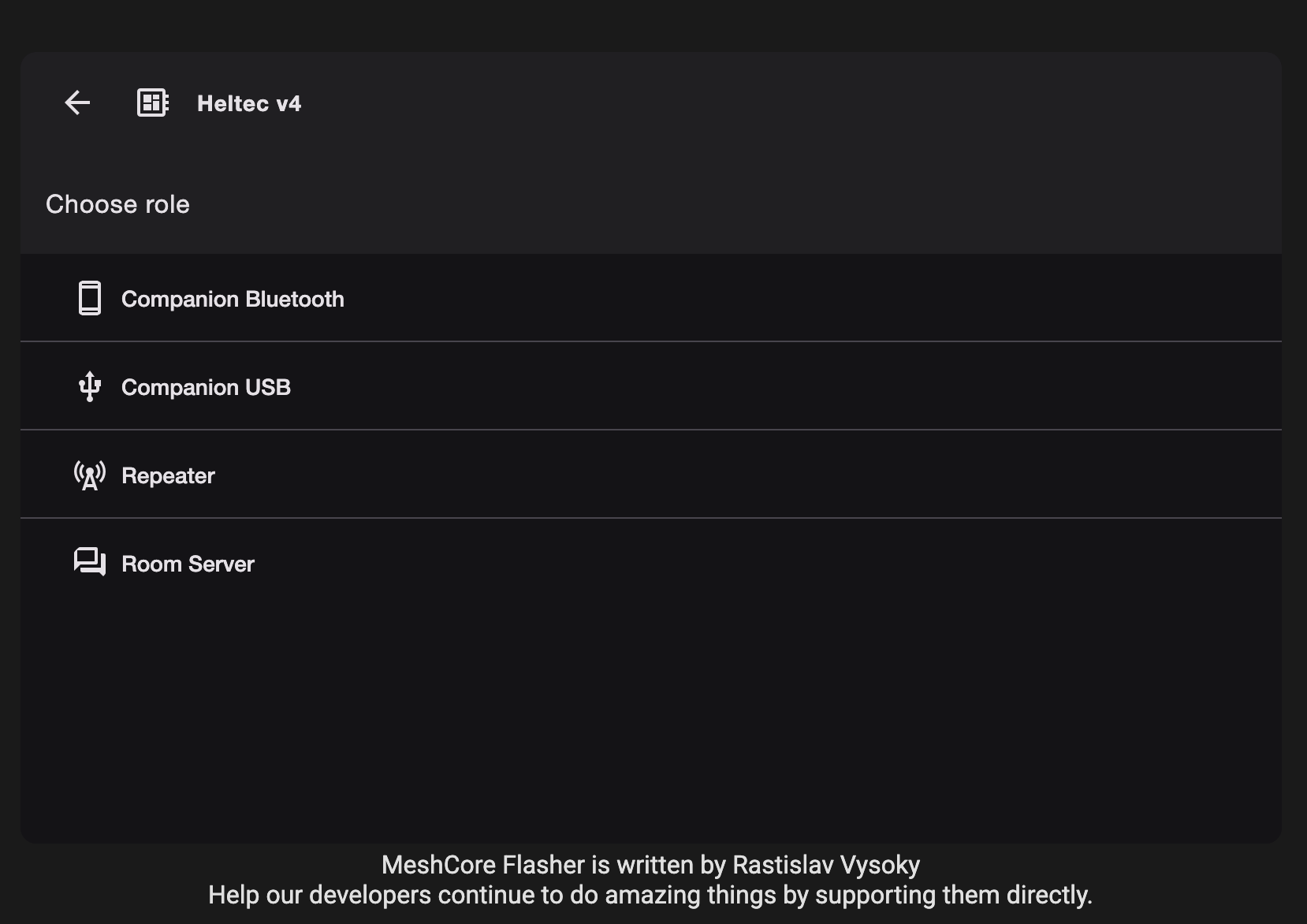
click image to enlarge
- Check the
Erase deviceoption.
Erase Warning
All data on the device will be permanently deleted.This is not required when updating firmware unless specifically instructed.
Since this device is new and may have come preloaded with Meshtastic, erasing it is recommended in this case.
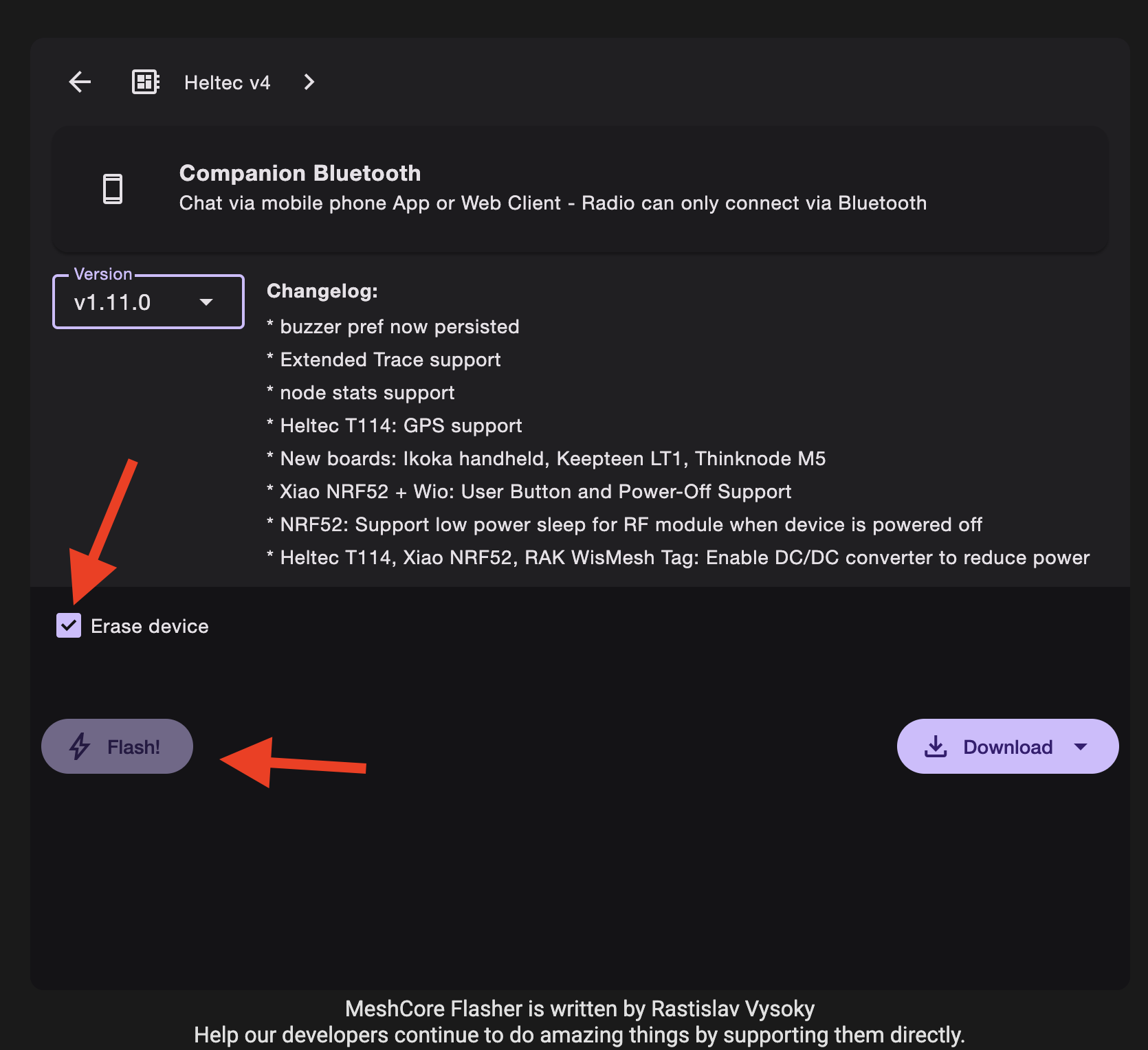
click image to enlarge
- Click the
Flash!button. Then select your device from the list and clickConnect
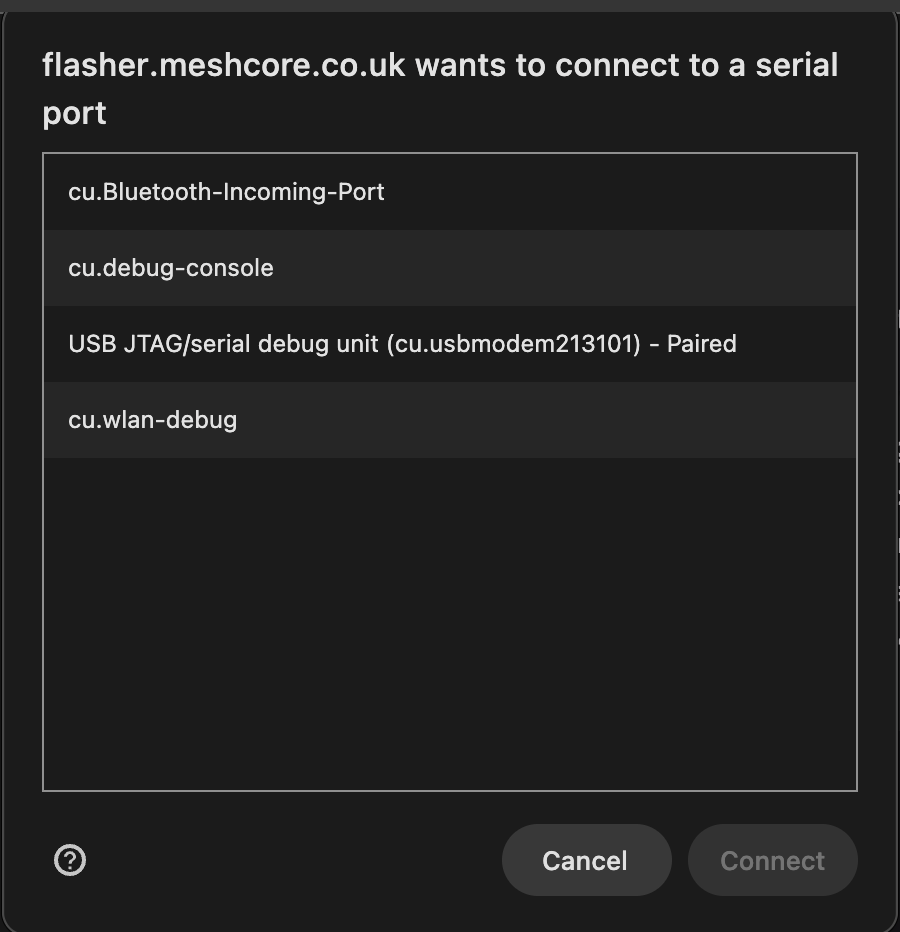
click image to enlarge
Flashing Warning
Be patient while the device is erased and the new firmware is installed.
Do not unplug or power off the device during this process — doing so may permanently brick the device.
¶ Configure the Companion
Download the MeshCore companion app for your platform:
- Android:
Google Play Store
APK download - iOS:
App Store - Chrome / Desktop:
Web App
¶ Connect to the Device
- Open the MeshCore app.
- If using Bluetooth, pair your device with your phone or computer.
- Click the
Connectbutton.
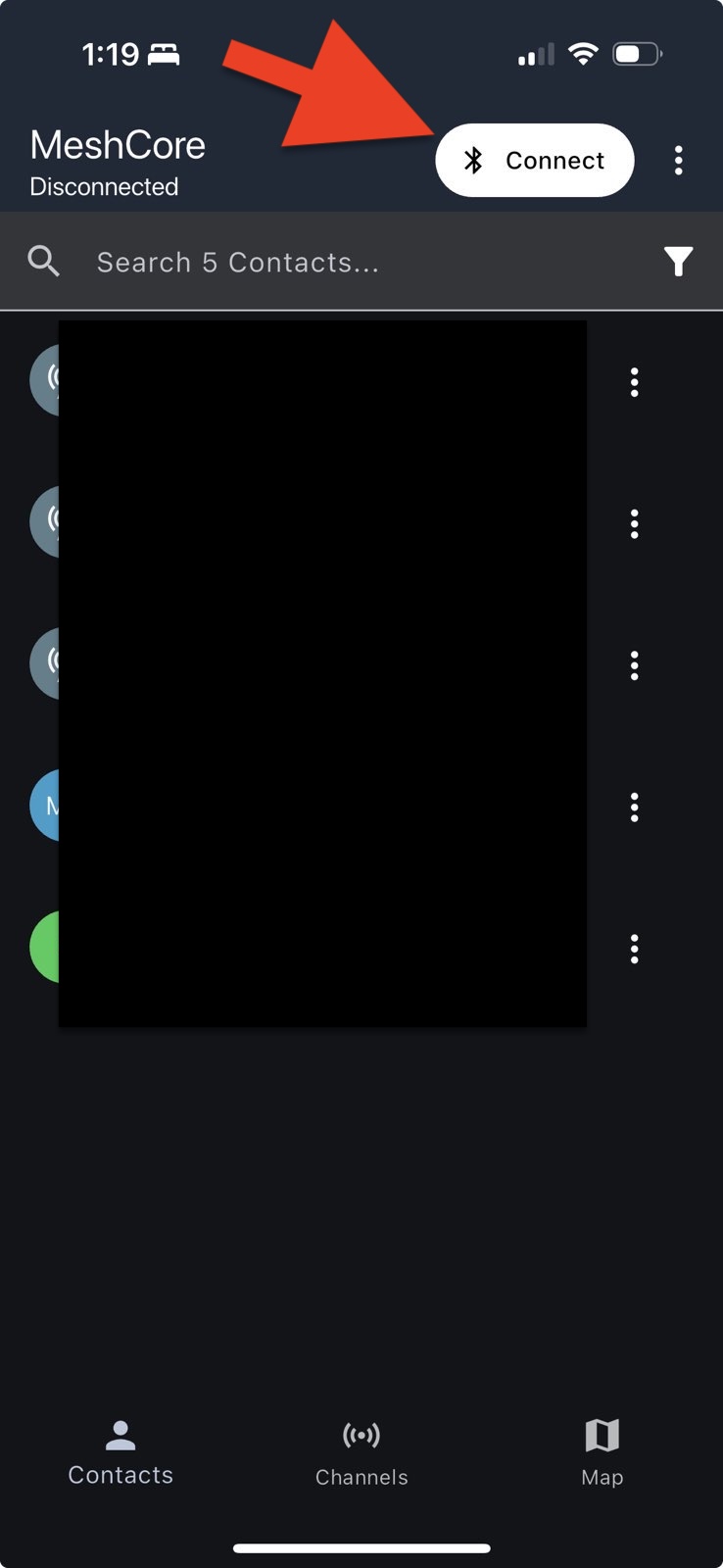
click image to enlarge
- Select your companion device from the list.
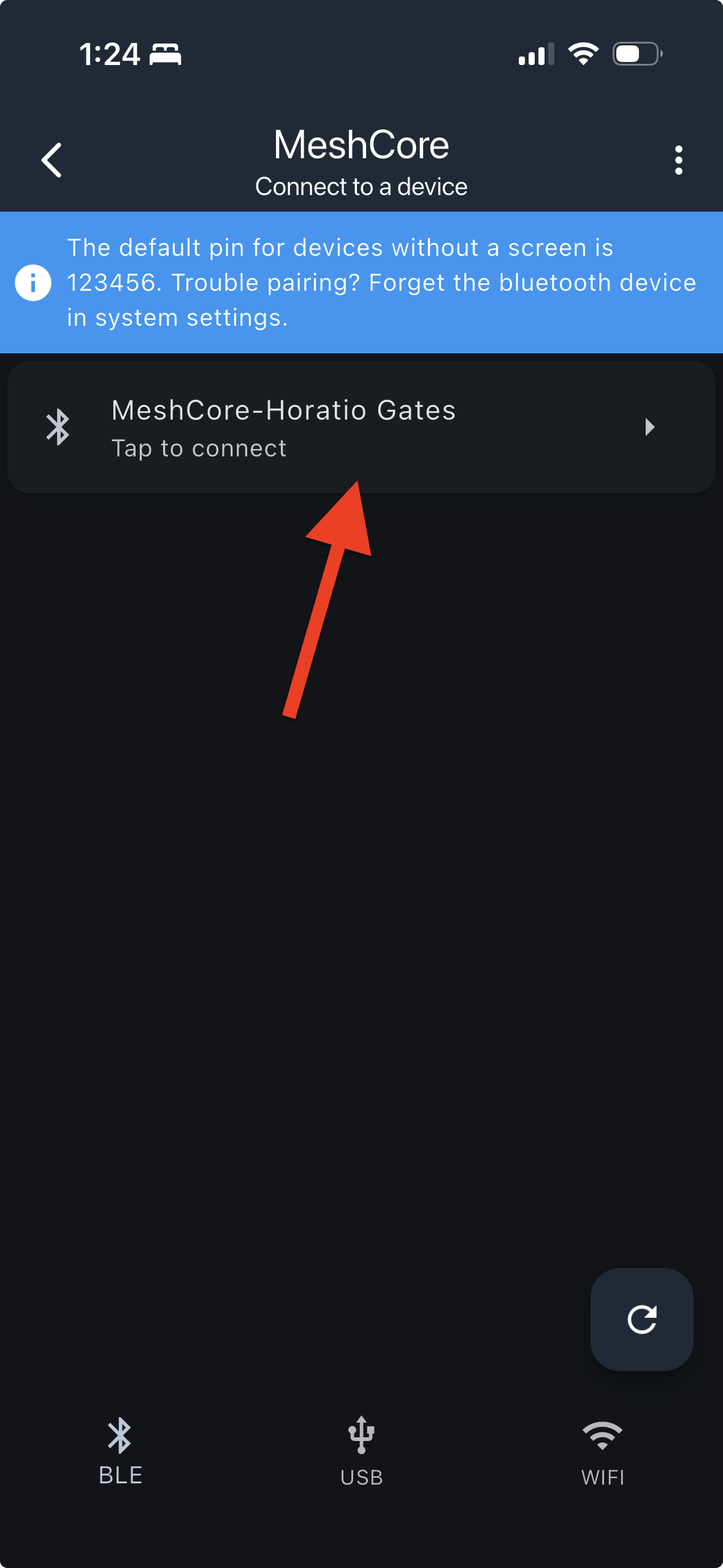
click image to enlarge
- Click the settings cog at the top of the screen.
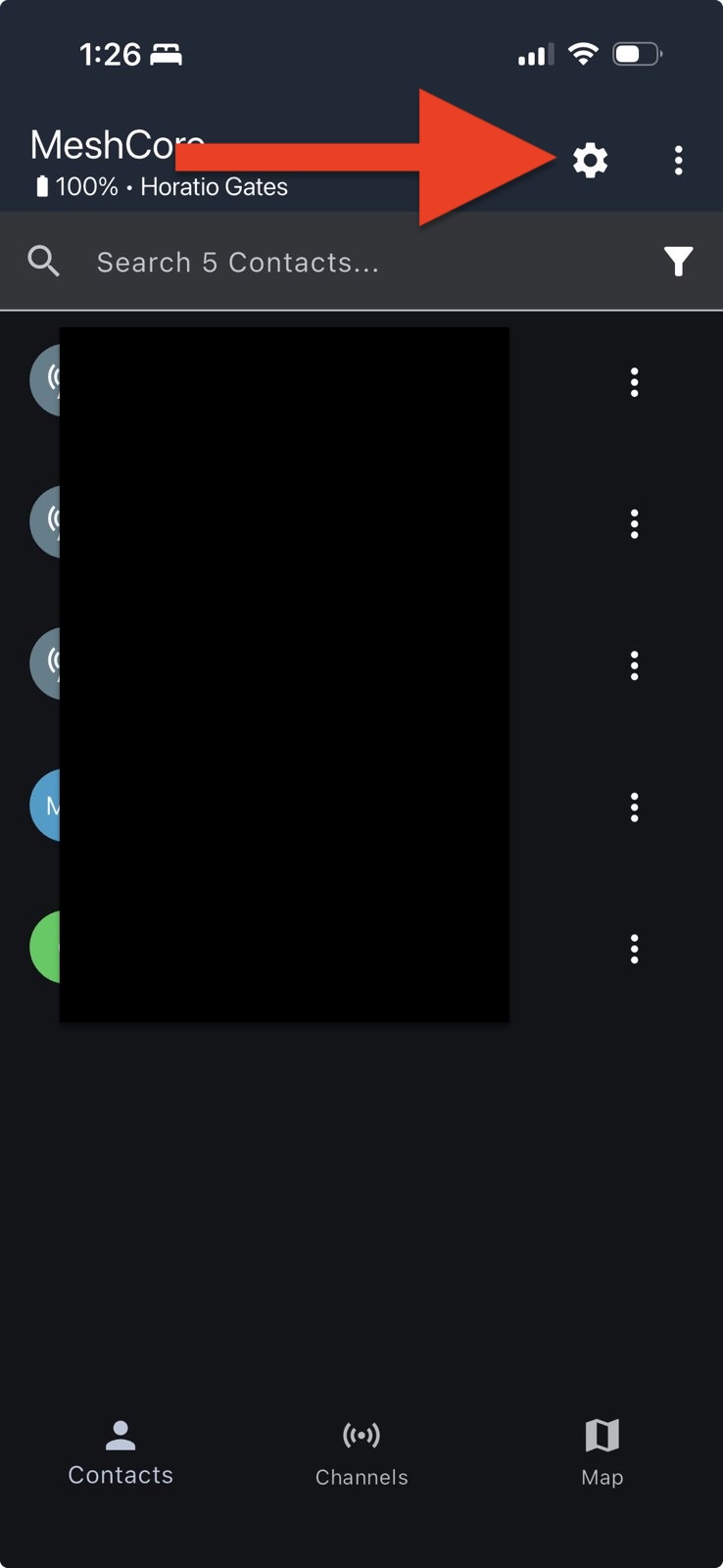
click image to enlarge
¶ Network Configuration
Set the following values:
- Name: Optional but recommended. This identifies you on the network
- Frequency (MHz):
910.525 - Bandwidth:
62.5 - Spreading Factor:
7 - Coding Rate:
8 - Transmit Power: Depends on your antenna;
10is a reasonable default
Click the white check mark at the top to save your settings.
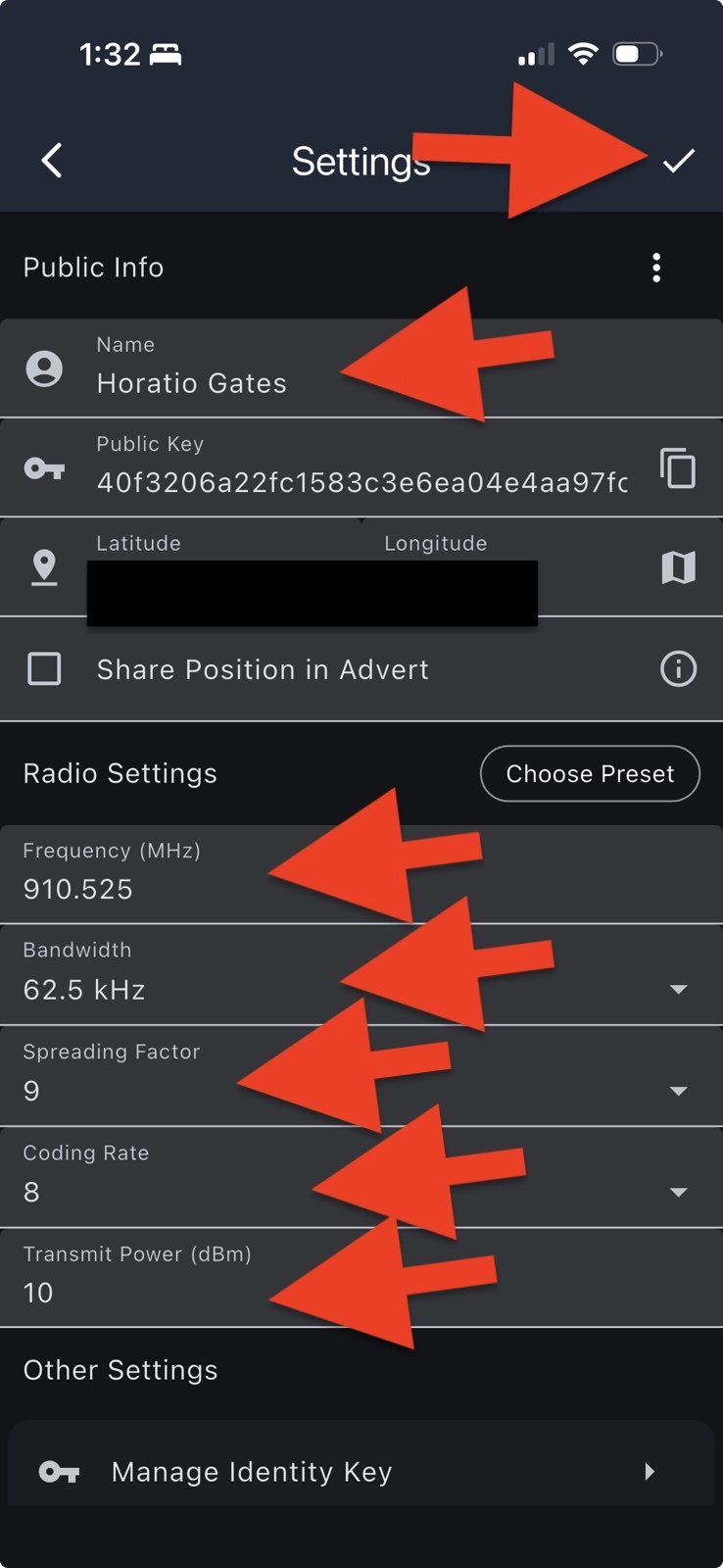
click image to enlarge
🎉 Congratulations!
Your device is now configured and connected to the MeshCore network.